
Sign in to receive points, to be added to the leaderboard, and to track your
typing progress.
Your Speed
0 WPM
Time Elapsed
00:00
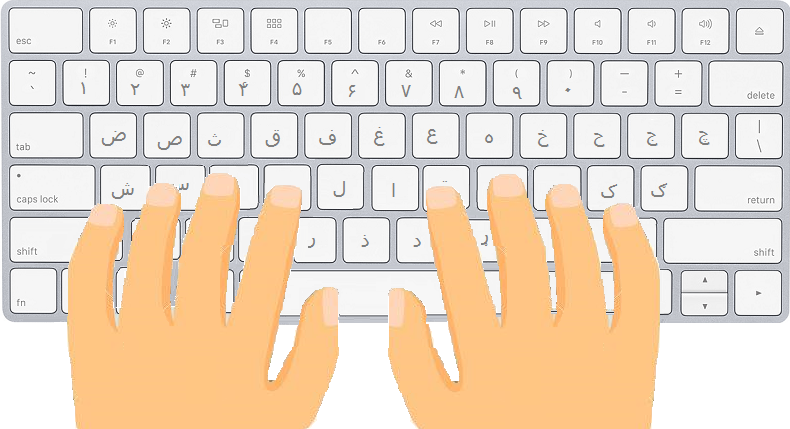
Press the key shown in the image above.
🏁 Find Your Typing Speed
Check how fast you type with the Typing Speed Test on TechKhoona! This online tool helps you measure your typing speed (in words per minute (WPM)) and accuracy for multiple languages. Just start typing the given text, and the test will track your performance as you go. It’s a quick and easy way to see your current typing level, monitor your progress, and set goals to improve. Whether you’re practicing to become faster, more accurate, or preparing for exams or work tasks, this speed test gives you instant feedback and motivation to get better.
Watch Demo on YouTube
Supported Languages
Multilingual Online Typing Master currently helps you learn to type in the following languages:
Multilingual Online Typing Master supports learning to type for people with the following typing skill levels:
Check out other sections of the Multilingual Online Typing Master:
📚 Available Sections
Quick Start Typing
Quickly start practicing different sets of keys. Perfect for getting started with typing in any language.
Get to Know the Keyboard
🔒 Requires LoginLearn to type in many languages with structured lessons for each key combination. Build a strong typing foundation.
Learn to Type with Paragraphs
🔒 Requires LoginPractice typing full paragraphs in your chosen language. Improve fluency, speed, and accuracy with real-world text.
Typing Games
Play fun games like Car Racing, Space Shooting, and Chicken Runner. Earn points while improving your typing skills.
Tips for Maintaining Proper Posture While Typing
Maintaining good posture while typing is essential for comfort and preventing strain. Follow these guidelines to ensure a healthy and ergonomic typing setup.
Body Posture
- Straight Back: Keep your back straight while using the computer to avoid back pain.
- Relaxed Shoulders: Avoid lifting your shoulders; keep them relaxed to prevent tension.
- Neutral Neck: Keep your neck straight and avoid twisting or tilting your head.
- Aligned Wrists: Ensure your wrists and forearms form a straight line while typing.
- Curved Fingers: Maintain a natural curve in your fingers to prevent fatigue.
Keyboard and Mouse Placement
- Keep Devices Close: Position your keyboard and mouse close together to minimize reaching.
- Elbow Height: Ensure the keyboard and mouse are at about elbow level to maintain a natural arm posture.
Monitor Placement
- Eye-Level Alignment: Place the monitor directly in front of you, at or slightly below eye level, to avoid neck strain.
- Document Positioning: If referencing documents, keep them near the monitor to reduce neck movement.
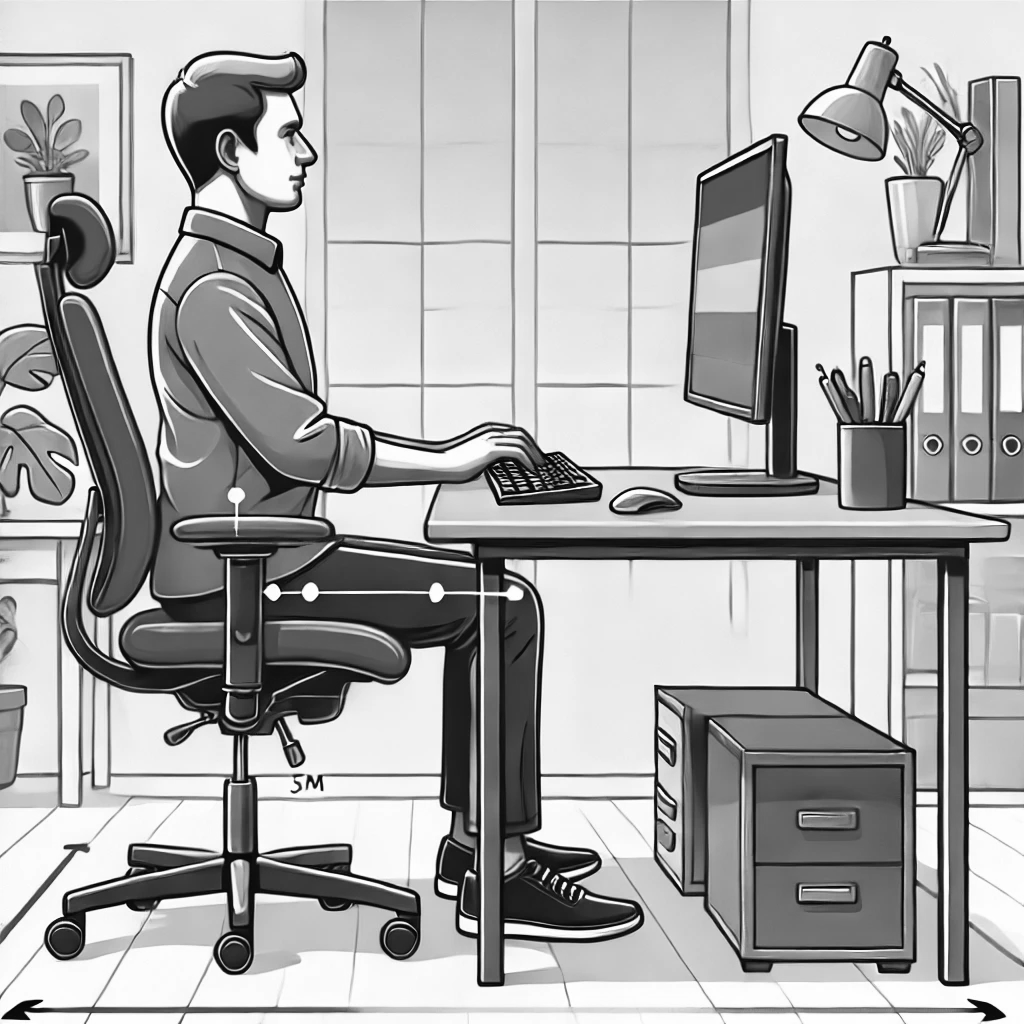
This image portrays the correct posture for using a computer.
Chair and Foot Placement
- Chair Height: Adjust your chair so your feet rest flat on the floor or on a footrest.
- Elbows Close: Keep your elbows close to your body, using armrests if available for support.
Additional Tips
- Light Typing Pressure: Avoid pressing the keys too hard to reduce strain on your fingers.
- Take Regular Breaks: Pause every 20–30 minutes to stretch, relax your muscles, and rest your eyes.
- Workspace Lighting: Use adequate lighting to reduce glare on the screen and minimize eye strain.